Printer Offline ? Assistance Made Simple
Get fast assistance for common printer issues including setup, connectivity, driver updates and troubleshooting.
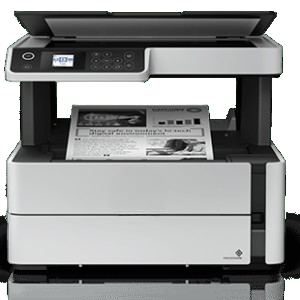
If your printer displays an “Offline” status, it means your computer cannot communicate with the printer. This issue can occur due to network interruptions, incorrect printer settings, outdated drivers, or temporary software glitches. Fortunately, most offline printer problems can be resolved with a few simple troubleshooting steps.
Common Causes of a Printer Offline Error
Several factors can cause a printer to appear offline, including:
- Weak or disconnected Wi-Fi connection
- Printer powered off or in sleep mode
- Loose USB or network cable
- Incorrect default printer settings
- Outdated or corrupted printer drivers
- Print queue errors
- Firewall or antivirus software blocking communication
- Recent router or network changes
How to Fix a Printer That Is Offline
1. Check the Printer’s Power and Connection
- Ensure the printer is turned on.
- Verify that it is connected to the correct Wi-Fi network or securely connected via USB or Ethernet.
- Restart the printer if necessary.
2. Restart Your Devices
Power cycle your printer, computer, and Wi-Fi router. Wait a few minutes before turning them back on and check if the printer reconnects.
3. Set the Printer as the Default Printer
On your computer:
- Open Printers & Scanners.
- Select your printer.
- Choose Set as Default Printer.
This helps ensure print jobs are sent to the correct device.
4. Clear the Print Queue
Stuck print jobs can prevent new documents from printing.
- Open the printer queue.
- Cancel any pending print jobs.
- Restart the printer and try printing again.
5. Disable “Use Printer Offline”
On Windows:
- Open the printer queue.
- Select the Printer menu.
- If Use Printer Offline is checked, click it to disable the option.
6. Update Printer Drivers
Install the latest printer drivers to improve compatibility and resolve communication issues.
7. Reconnect the Printer
If the problem continues:
- Remove the printer from your computer.
- Add it again using the wireless setup or USB connection.
- Print a test page to verify the connection.
Tips to Prevent Printer Offline Issues
- Keep your printer connected to a stable Wi-Fi network.
- Install driver and firmware updates regularly.
- Avoid turning off the printer during print jobs.
- Keep the printer within range of your wireless router.
- Restart your printer occasionally to refresh the network connection.
- Use a reliable internet connection for wireless printing.
Frequently Asked Questions
Why does my printer keep going offline?
A printer may repeatedly go offline because of an unstable Wi-Fi connection, outdated drivers, incorrect printer settings, or temporary communication issues between the printer and your computer.
How do I bring my printer back online?
Check the printer’s power and network connection, restart your devices, clear the print queue, disable Use Printer Offline, and ensure the printer is set as the default device.
Can restarting my router fix a printer offline issue?
Yes. Restarting your router can restore the network connection and help the printer reconnect to your computer if the issue is network-related.
Do outdated drivers cause offline errors?
Yes. Outdated or corrupted printer drivers can prevent proper communication between your computer and the printer. Updating the drivers often resolves the issue.
Conclusion
A printer showing as Offline is usually caused by connection, driver, or configuration issues rather than a hardware failure. By checking your network connection, restarting your devices, updating drivers, and verifying your printer settings, you can resolve most offline problems quickly. Following these best practices can also help keep your printer connected and ready for reliable wireless or wired printing.