Having Issue With Windows & Mac Setup ?
Get fast assistance for common printer issues including setup, connectivity, driver updates and troubleshooting.
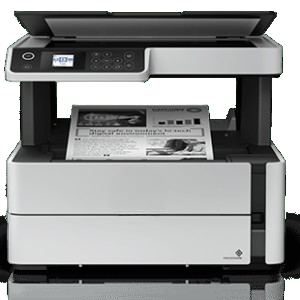
Setting up your wireless printer on Windows or macOS is simple once the printer is connected to the same Wi-Fi network as your computer. After installation, you can print documents, photos, and other files without using a USB cable.
Windows Printer Setup
Follow these steps to add your printer on a Windows PC:
- Ensure your printer is powered on and connected to your Wi-Fi network.
- Open Settings and select Bluetooth & devices.
- Click Printers & scanners.
- Select Add device.
- Wait for Windows to detect your printer.
- Choose your printer from the list and click Add device.
- If prompted, install the recommended printer driver.
- Print a test page to confirm the setup is complete.
Windows Setup Tips
- Keep Windows updated for the latest printer compatibility.
- Set your printer as the default printer for easier access.
- Restart your computer if the printer does not appear immediately.
- Ensure both your computer and printer are connected to the same Wi-Fi network.
Mac Printer Setup
Adding a printer on macOS is quick and straightforward.
- Connect your printer to your Wi-Fi network.
- Open System Settings (or System Preferences on older macOS versions).
- Select Printers & Scanners.
- Click the + (Add Printer) button.
- Choose your wireless printer from the available devices.
- Allow macOS to download or install any required software automatically.
- Click Add to complete the installation.
- Print a test document to verify the connection.
Mac Setup Tips
- Keep macOS updated for the best compatibility.
- Ensure the printer and Mac are connected to the same wireless network.
- If your printer supports AirPrint, no additional drivers may be required.
- Restart your Mac and printer if the printer is not detected.
Troubleshooting Setup Issues
If your computer cannot find the printer:
- Verify that the printer is connected to the correct Wi-Fi network.
- Restart your printer, computer, and router.
- Check that wireless printing is enabled on the printer.
- Update your printer drivers or firmware.
- Temporarily disable firewall or antivirus software if it is blocking printer discovery.
- Remove the printer and add it again if the connection fails.
Once the setup is complete, your Windows PC or Mac will be ready to print wirelessly from anywhere on the same network.